How to Schedule Messages on GB WhatsApp Pro ?
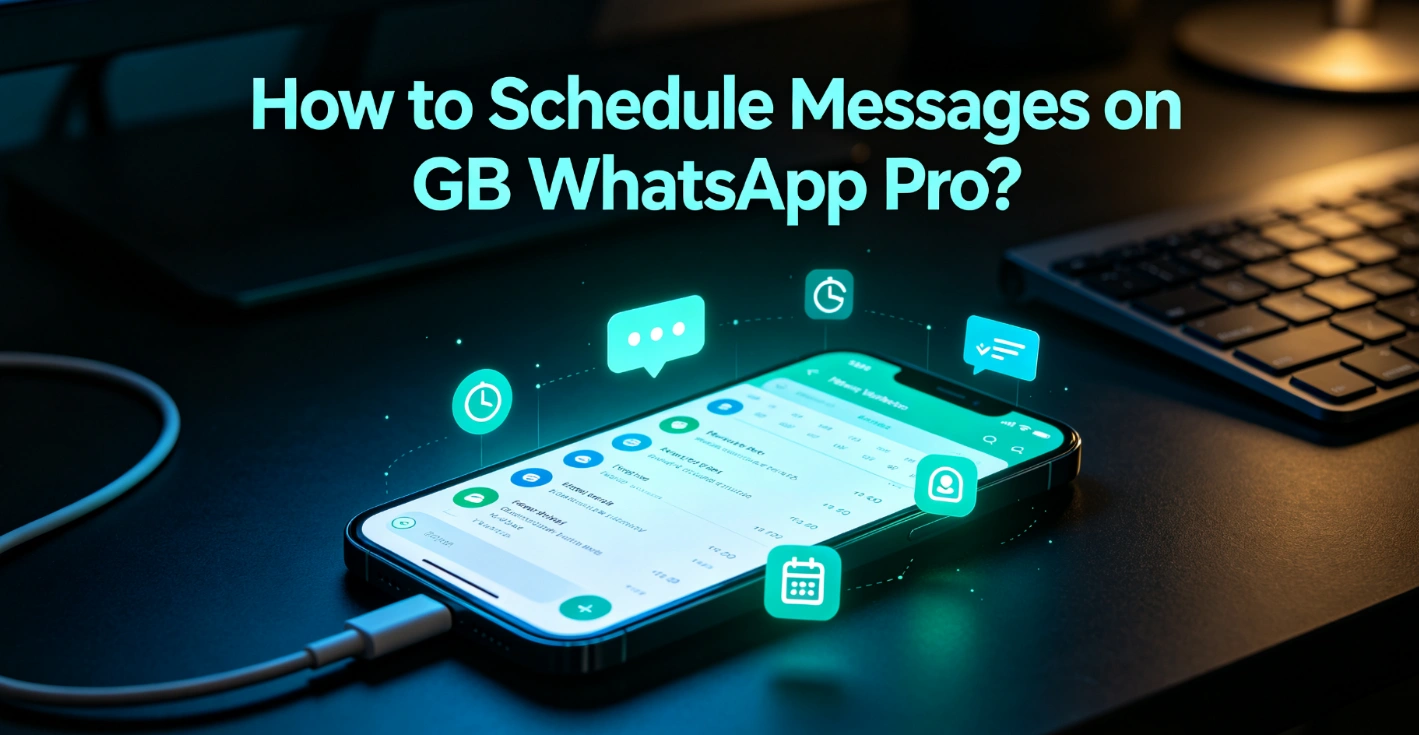
Have you ever forgotten to send a birthday wish, an important reminder, or a business follow-up message? GB WhatsApp Pro includes a built-in Message Scheduler that lets you send messages automatically at a specific date and time.
Whether you're using GB WhatsApp Pro for personal chats or business communication, this feature can save time and help ensure your messages are delivered exactly when you want. This guide explains how to schedule messages, edit or delete scheduled messages, fix common issues, and answer the most frequently asked questions.
What Is the Message Scheduler in GB WhatsApp Pro?
The Message Scheduler is one of the most useful productivity features available in many versions of GB WhatsApp Pro. Instead of remembering to send a message later, you can write it in advance and choose exactly when it should be delivered.
You can use the scheduler for:
- Birthday and anniversary wishes
- Business reminders
- Client follow-ups
- Meeting notifications
- Holiday greetings
- Group announcements
This feature is especially helpful if you frequently communicate with customers, friends, family, or work teams.
How to Schedule Messages on GB WhatsApp Pro
Scheduling a message is simple and usually takes less than a minute.
Step 1: Open GB WhatsApp Pro
Launch the latest version of GB WhatsApp Pro on your Android device.
Step 2: Open the Chat
Select the individual contact or group where you want the scheduled message to be sent.
Step 3: Type Your Message
Enter the message you want to send.
For example:
Happy Birthday! Have a wonderful day!
or
Reminder: Our meeting starts at 10:00 AM tomorrow.
Step 4: Open the Menu
Tap the three-dot menu in the upper-right corner.
Depending on your version, you may also find the scheduler under GB Settings or Tools.
Step 5: Select Message Scheduler
Tap Message Scheduler or Schedule Message.
Some versions may use different names, but the function works in a similar way.
Step 6: Choose the Date and Time
Select the date and exact time when you want the message to be sent.
Some versions also allow you to set recurring schedules, such as:
- Daily
- Weekly
- Monthly
Step 7: Save the Schedule
Tap Schedule, Save, or OK.
Your message will now appear in the scheduler list and will be sent automatically at the selected time.
How to View Scheduled Messages
You can check all pending scheduled messages at any time.
Simply follow these steps:
- Open GB WhatsApp Pro.
- Tap the three-dot menu.
- Open Message Scheduler.
- View your scheduled messages.
You'll usually see the recipient, message preview, scheduled date, and scheduled time.
How to Edit a Scheduled Message
If you need to make changes before the message is sent, you can edit it easily.
- Open Message Scheduler.
- Select the scheduled message.
- Tap Edit.
- Modify the message, date, or time.
- Save your changes.
The updated version will replace the previous schedule.
How to Delete a Scheduled Message
To remove a scheduled message:
- Open Message Scheduler.
- Tap the scheduled message.
- Select Delete.
- Confirm the action.
The message will be removed and won't be sent.
Best Ways to Use Message Scheduler
The Message Scheduler is useful for both personal and professional communication.
Common examples include:
- Sending birthday wishes automatically
- Scheduling holiday greetings
- Reminding clients about appointments
- Sending meeting reminders
- Posting announcements to group chats
- Scheduling daily motivational messages
- Sending school or community notices
Using scheduled messages helps you stay organized without needing to remember every important event.
Why Are Scheduled Messages Not Sending?
If your scheduled message wasn't delivered, one of the following issues may be the cause.
No Internet Connection
Your phone must have an active internet connection when the scheduled time arrives.
Solution: Connect to Wi-Fi or mobile data before the scheduled time.
Battery Optimization
Some Android devices stop background apps to save battery power.
Solution: Disable battery optimization for GB WhatsApp Pro.
App Was Force Closed
If GB WhatsApp Pro has been force stopped, scheduled messages may not run correctly.
Solution: Leave the app installed and avoid force closing it.
Incorrect Device Time
An incorrect system clock can cause messages to be sent at the wrong time.
Solution: Enable Automatic Date & Time in your Android settings.
Outdated GB WhatsApp Pro Version
Older versions may contain bugs affecting the scheduler.
Solution: Update to the latest available version.
Missing Background Permissions
Some Android devices restrict apps from running in the background.
Solution: Allow GB WhatsApp Pro to run in the background and enable all required permissions.
Tips for Using Message Scheduler
To improve the success rate of scheduled messages:
- Keep your phone powered on.
- Maintain a stable internet connection.
- Check the scheduled time before saving.
- Update GB WhatsApp Pro regularly.
- Review your scheduled messages occasionally.
- Avoid scheduling duplicate messages.
These simple habits can help prevent failed deliveries.
GB WhatsApp Pro vs Official WhatsApp
The Message Scheduler is one of the features that makes GB WhatsApp Pro attractive to many users. However, because it is an unofficial modification of WhatsApp, available features may vary between versions.
| Feature | GB WhatsApp Pro | Official WhatsApp |
|---|---|---|
| Message Scheduler | ✅ Yes | ❌ No |
| Auto Reply | ✅ Yes | Limited (Business only) |
| Custom Themes | ✅ Yes | ❌ No |
| Freeze Last Seen | ✅ Yes | ❌ No |
| Hide Blue Ticks | ✅ Yes | Limited |
| Advanced Privacy Features | ✅ Yes | Limited |
Frequently Asked Questions
Can I schedule messages in group chats?
Yes. Most versions of GB WhatsApp Pro support scheduling messages for both individual and group chats.
Does my phone need to stay on?
Yes. Your phone should remain powered on when the scheduled message is due to be sent.
Does my phone need an internet connection?
Yes. An active internet connection is generally required for scheduled messages to be delivered successfully.
Can I edit a scheduled message?
Yes. Open Message Scheduler, select the message, edit it, and save your changes before the scheduled time.
Can I schedule recurring messages?
Some versions support recurring schedules such as daily, weekly, or monthly messages, while others only support one-time scheduling.
Why can't I find the Message Scheduler?
The feature's location depends on the version of GB WhatsApp Pro you're using. It may be located under GB Settings, Tools, or the three-dot menu. If it isn't available, your version may not include the feature.
Final Thoughts
The Message Scheduler is one of the most practical features in GB WhatsApp Pro. It allows you to automate birthday greetings, business reminders, meeting notifications, and other important messages with just a few taps.
To ensure scheduled messages are delivered successfully, keep the app updated, maintain a stable internet connection, and avoid restricting the app's background activity. Although GB WhatsApp Pro offers useful features not found in the official WhatsApp app, remember that it is an unofficial modification, and available features may differ depending on the version you install.
Continue Reading
Explore more GB WhatsApp guides and tutorials.