Why Is GB WhatsApp Not Installing or Crashing?
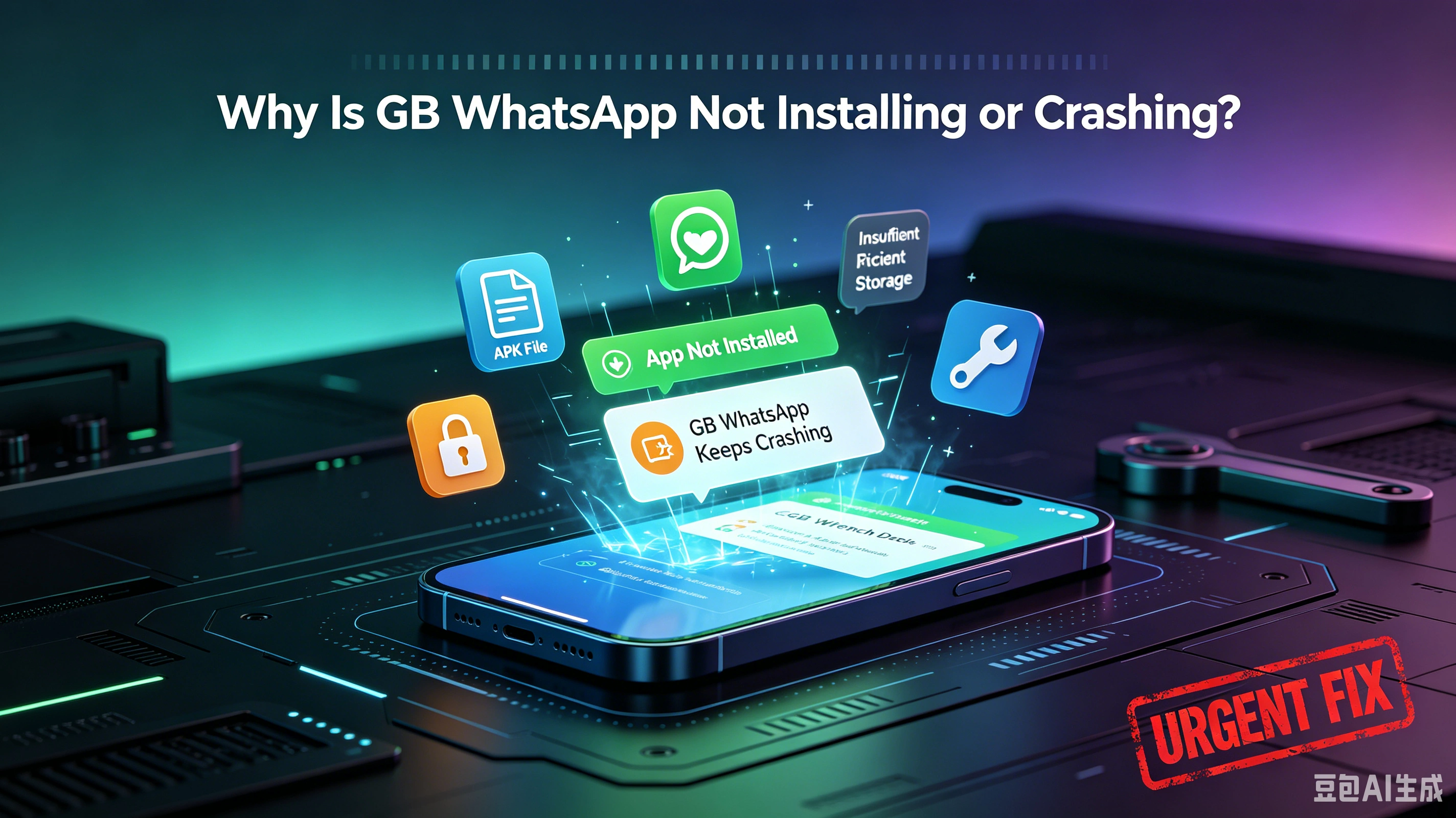
Most GB WhatsApp APK installation or crashing problems are caused by outdated versions, incompatible Android devices, corrupted APK files, or conflicts with an existing WhatsApp installation. In most cases, the issue can be resolved by downloading a compatible APK, checking storage space, enabling app installation from trusted sources, and updating Android. Before making any changes, always back up your chats to avoid losing important conversations.
Why Does GB WhatsApp Fail to Install?
Installation problems usually have a simple cause.
Unlike apps downloaded from Google Play, GB WhatsApp is installed manually using an APK file. This means there are more things that can go wrong during the installation process.
Some users see an "App Not Installed" message, while others find that the installation completes successfully but the app crashes immediately after opening.
Fortunately, most of these problems can be fixed without resetting your phone.
The Most Common Reasons GB WhatsApp Won't Install
In most cases, one of these issues is responsible.
The most common causes include:
- Downloading a damaged or incomplete APK.
- Installing a version that isn't compatible with your Android version.
- Having insufficient storage space.
- Trying to install over another conflicting WhatsApp package.
- Using an outdated version of Android.
- Corrupted application data.
- Security settings preventing APK installation.
Checking these basic issues first usually saves the most time.
Common Problems and Their Solutions
| Problem | Possible Cause | Recommended Fix |
|---|---|---|
| App Not Installed | Existing package conflict | Remove conflicting version and reinstall |
| Installation Stops | Corrupted APK | Download the APK again |
| App Keeps Crashing | Outdated version | Install the latest compatible release |
| Verification Fails | SMS or network issue | Check internet connection and phone number |
| Black Screen | Corrupted cache | Clear app data and restart |
| App Closes Immediately | Android compatibility | Update Android if possible |
| Update Fails | Wrong APK version | Download the correct version for your device |
Fix 1: Download a Complete APK File
A damaged download is one of the most common causes.
If the APK download was interrupted or incomplete, Android may refuse to install it.
Delete the existing APK and download a fresh copy before trying again.
Avoid installing APK files from unknown websites that contain multiple fake download buttons or misleading advertisements.
Fix 2: Check Your Android Version
Older Android versions may not support newer releases.
Some GB WhatsApp versions require newer Android system features.
If your device is several years old, installing the newest version may cause crashes or prevent installation entirely.
Check your Android version in your device settings and use a compatible GB WhatsApp release whenever possible.
Fix 3: Make Sure You Have Enough Storage
Low storage can interrupt installation.
Even if the APK itself is small, Android needs additional free space to unpack and install the application.
Try freeing at least several hundred megabytes by deleting unnecessary files or unused apps before installing GB WhatsApp.
Fix 4: Remove Conflicting WhatsApp Packages
Android cannot always install two apps with conflicting package information.
If another modified WhatsApp version is already installed, Android may display an "App Not Installed" message.
Before uninstalling any application:
- Back up your chats.
- Export important media files.
- Confirm your backup is complete.
Once everything is safely backed up, remove the conflicting version before installing GB WhatsApp.
Fix 5: Enable Installation from Trusted Sources
Android blocks unknown apps by default.
Because GB WhatsApp isn't downloaded through Google Play, your phone must allow APK installation.
You can usually enable this by allowing your browser or file manager permission to install apps from trusted sources.
After installation, you may disable this permission again if you prefer.
Fix 6: Clear Cached Files
Corrupted cache data can cause unexpected crashes.
If GB WhatsApp opens briefly and then closes immediately, clearing its cache may solve the issue.
Restart your phone after clearing the cache before opening the app again.
This simple step often resolves temporary software conflicts.
Fix 7: Restart Your Device
Sometimes the easiest solution works.
After installing or updating GB WhatsApp, restart your phone.
A restart refreshes Android services and closes background processes that may interfere with newly installed applications.
Many users overlook this step even though it only takes a minute.
Fix 8: Check Your Internet Connection
Verification requires a stable network.
If the app installs successfully but cannot verify your phone number, the problem may be unrelated to GB WhatsApp itself.
Try switching between Wi-Fi and mobile data, then request another verification code.
Poor network quality can delay SMS delivery or verification.
Fix 9: Keep Your Device Updated
Software compatibility matters.
Android updates often include bug fixes, security improvements, and better compatibility with newer applications.
While updating Android isn't always required, using a recent system version generally improves app stability.
Fix 10: Reinstall GB WhatsApp
If everything else fails, perform a clean installation.
A clean installation removes corrupted files that may remain after failed updates.
Before reinstalling:
- Back up all chats.
- Save photos and videos.
- Remove the old installation completely.
- Restart the phone.
- Install a fresh APK.
This process solves many persistent installation problems.
Should You Worry If GB WhatsApp Keeps Crashing?
Not necessarily.
Most crashes are caused by software compatibility issues rather than permanent damage to your phone.
Common reasons include:
- Incompatible APK versions.
- Corrupted downloads.
- Outdated Android software.
- Cache conflicts.
- Installation errors.
Working through the fixes above usually resolves the issue without requiring advanced technical knowledge.
Conclusion
GB WhatsApp installation and crashing problems are usually easier to solve than they first appear. Most issues result from incompatible APK versions, incomplete downloads, insufficient storage, or conflicts with existing installations.
Before making major changes, always create a backup of your chats and media. Then work through the common fixes one by one, starting with the simplest solutions such as downloading a fresh APK, checking compatibility, and restarting your device.
If the problem continues after trying these steps, switching to a newer compatible version is often the next logical solution.
Frequently Asked Questions
Why does GB WhatsApp say "App Not Installed"?
This usually happens because of a package conflict, an incompatible APK, or a corrupted download.
Why does GB WhatsApp crash immediately after opening?
The most common causes are incompatible Android versions, damaged app data, or outdated APK files.
Will reinstalling GB WhatsApp delete my chats?
It can if you haven't created a backup first. Always back up your conversations before uninstalling or reinstalling the app.
Can low storage cause installation problems?
Yes. Android needs enough available storage to unpack and install applications successfully.
What's the best way to avoid installation problems?
Download a compatible APK from a reputable source, verify your Android version, keep enough free storage available, and back up your chats before installing updates.
Continue Reading
Explore more GB WhatsApp guides and tutorials.